Run translations locally with LM Studio
Most words you click in Lector never touch the network. They resolve straight from an on-device dictionary. But that dictionary is small, so plenty of lookups still fall through to a cloud LLM, and in a thinly-resourced language like Afrikaans, plenty is an understatement. Each one sends a slice of what you're reading to someone else's server, and adds to a per-token bill.
Lector's click-to-translate, phrase translation, journal correction, and LLM tutor all run through one pluggable translation agent, and LM Studio is one of the providers you can point it at: a desktop app that downloads open models and serves them over an OpenAI-compatible API. This guide wires that agent up to a model on your own hardware, so the lookups that would have gone to the cloud are answered locally instead — no API key, no cloud round-trip, no per-token bill.
This post documents the LM Studio provider in the current Lector release. Under the hood Lector talks to LM Studio over the standard OpenAI chat-completions API (/v1/chat/completions and /v1/models), so everything here applies to any server that speaks that protocol. LM Studio is just the easiest one to get running on a laptop.
Why an OpenAI-compatible local server
Lector doesn't hard-code a translation API. It selects a provider and calls it through a small interface (complete() for translations and explanations). For local models, that interface is satisfied by anything that implements the OpenAI shape:
POST /v1/chat/completions— the actual translation/definition callGET /v1/models— so Lector can list the models you have available- an optional
Authorization: Bearer <key>header for protected servers
LM Studio exposes exactly these endpoints. That means your reading history, vocabulary, and the text you're translating never leave your hardware, and you can swap the underlying model whenever you like without touching Lector.
A note on quality. You might expect a local model to fall behind a frontier one on a low-resource language. I benchmarked it, and for Afrikaans that mostly isn't true. Translating Afrikaans into English (Tatoeba, chrF++), Gemma 4 12B (QAT) running in LM Studio scores 82.7, ahead of Claude Opus and GPT-4o and within half a point of GPT-5 and Gemini 2.5 Pro, the only two that beat it. Even the tiny Gemma 4 E4B clears 80. Pick a capable instruction-tuned model, a general one rather than a 4B coder model, and local quality lands closer to the cloud than the cost gap suggests. Treat these as relative gaps on a Tatoeba set, not absolute scores. The one model that struggled was, of all things, Apple Intelligence's on-device model, which errored on about a quarter of the Afrikaans sentences. The docs' LLM Providers section has the trade-offs.
What you'll need
- A running Lector instance. See the installation guide if you don't have one yet.
- A machine to run LM Studio on (macOS on Apple Silicon, Windows, or Linux). This can be the same machine as Lector or a different one on your network.
- Enough memory for your chosen model. A 7-8B model quantised to 4-bit needs roughly 5-6 GB of RAM or VRAM.
Step 1 · Install LM Studio and download a model
- Download LM Studio from lmstudio.ai and install it.
- Open the Discover (search) tab and download an instruction-tuned model. Good starting points are a compact model like Google's
Gemma(the efficient E4B variant runs comfortably on a laptop),Llama 3.1 8B Instruct, orQwen2.5 7B Instruct. Pick a 4-bit (Q4) quant to keep memory use modest. - Wait for the download to finish. You don't need to chat with it in the LM Studio UI; we only need the server.
Step 2 · Start LM Studio's local server
LM Studio runs the OpenAI-compatible API on port 1234 by default.
From the app
Open the Developer tab (called the Local Server tab in older versions) and start the server. It will begin listening on http://localhost:1234.
Or from the CLI
LM Studio ships a headless CLI, which is handy if the app runs on a server:
# Start the OpenAI-compatible server on :1234
lms server start

# (optional) load a model so the first request isn't slow
lms load <model-name>
Verify it's up
From the same machine, confirm the API answers and reports your models:
curl http://localhost:1234/v1/modelsYou should get back a JSON list with at least one model id. That's what you'll select in Lector.
Serving to another machine? By default LM Studio binds to localhost only, so nothing outside that machine can reach it, including a Docker container. If Lector runs anywhere other than the same OS as LM Studio, enable "Serve on Local Network" in LM Studio's server settings (this binds it to 0.0.0.0). That's the most common reason the connection fails. See Running Lector in Docker below.
Step 3 · Point Lector at LM Studio
In Lector, open Settings → AI Provider, set the provider to Local / self-hosted (OpenAI-compatible), and choose the LM Studio preset (it autofills the endpoint to localhost:1234). Then:
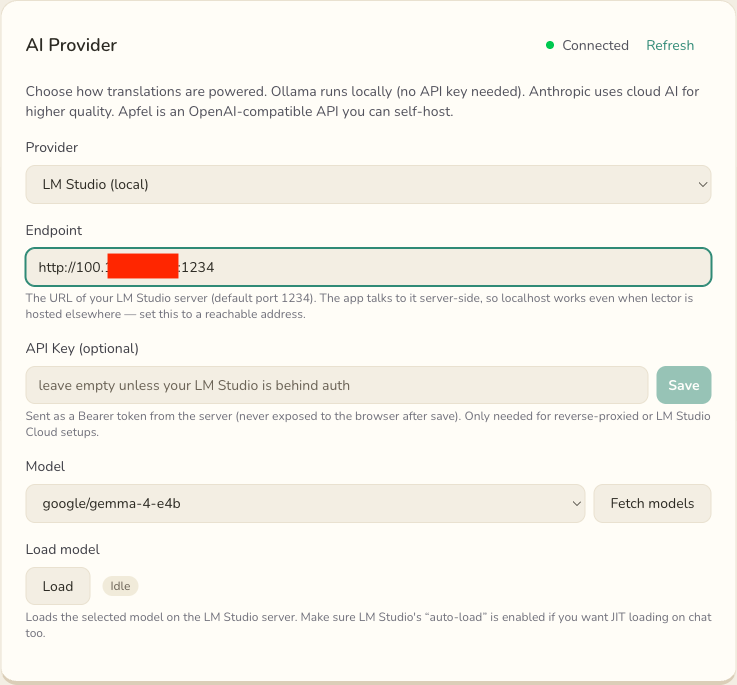
100.x address), with google/gemma-4-e4b selected and a live Connected check.Endpoint
The base URL of your LM Studio server, without the /v1 suffix. Lector adds that itself.
- LM Studio on the same OS as Lector:
http://localhost:1234 - LM Studio on a different machine: use that machine's address, e.g.
http://192.168.1.50:1234 - Lector in Docker: see the Docker section.
localhostwill not work here.
API Key (optional)
Leave this empty for a normal local setup. You only need it if your LM Studio is behind a reverse proxy or you're using LM Studio Cloud. When set, Lector sends it as a Bearer token from the server side, never exposed to the browser after you save it.
Model
Click Fetch models. Lector queries /v1/models and populates the dropdown with what LM Studio has available; pick the one you downloaded. If the fetch fails (e.g. the server isn't reachable yet), you can type the model id in manually.
That's it. Open a book or article, click a word, and the lookup is answered by your local model. The first request after the server starts can be slow while LM Studio loads the model into memory; enable just-in-time / auto-load, or run lms load (from step 2) to pre-load it. If LM Studio is ever unreachable, Lector quietly falls back to its built-in dictionary of the most common words, so reading never breaks.
Running Lector in Docker
This is the part that trips people up, so it gets its own section. Lector's translation call happens server-side, inside the container. So when you type http://localhost:1234, "localhost" means the container itself, not your host machine where LM Studio is running. The container has no LM Studio, so the connection is refused.
There are two things to get right:
1. Make LM Studio reachable off-localhost
As noted above, enable "Serve on Local Network" in LM Studio so it binds to 0.0.0.0:1234 instead of 127.0.0.1:1234. A container can't reach a host's loopback-only service.
2. Use a host-reachable address in the Endpoint
| Your setup | Endpoint to use |
|---|---|
| Docker Desktop (macOS / Windows) | http://host.docker.internal:1234 |
| Docker on Linux | http://host.docker.internal:1234, but you must add the host-gateway mapping (below), or just use the host's LAN IP, e.g. http://192.168.1.50:1234 |
| LM Studio on a separate machine | That machine's LAN IP, e.g. http://192.168.1.50:1234 |
On Linux, host.docker.internal isn't defined by default. Add it to your compose service:
services:
  lector:
    image: ghcr.io/heuwels/lector:latest
    container_name: lector
    restart: unless-stopped
    ports:
      - "3400:3000"
    volumes:
      - ./data:/app/data
    environment:
      - NODE_ENV=production
    # Lets the container resolve host.docker.internal on Linux
    extra_hosts:
      - "host.docker.internal:host-gateway"
Then set the Endpoint to http://host.docker.internal:1234 in Lector's settings.
Configuring it without the UI
If you'd rather not click through settings (handy for reproducible deployments), you can configure the provider entirely with environment variables. The settings you save in the UI take precedence; these env vars are the fallback when a setting isn't set.
| Variable | Default | Description |
|---|---|---|
LLM_PROVIDER | anthropic | Set to lmstudio to use LM Studio as the translation agent |
LMSTUDIO_URL | http://localhost:1234 | Base URL of the LM Studio server (no /v1 suffix) |
LMSTUDIO_MODEL | (none) | The model id to use (as it appears in /v1/models) |
LMSTUDIO_API_KEY | (none) | Optional. Bearer token, only for auth-protected servers |
A complete Docker Compose example, pointing at LM Studio running on the Docker host:
services:
  lector:
    image: ghcr.io/heuwels/lector:latest
    container_name: lector
    restart: unless-stopped
    ports:
      - "3400:3000"
    volumes:
      - ./data:/app/data
    environment:
      - NODE_ENV=production
      - LLM_PROVIDER=lmstudio
      - LMSTUDIO_URL=http://host.docker.internal:1234
      - LMSTUDIO_MODEL=google/gemma-4-e4b
    extra_hosts:
      - "host.docker.internal:host-gateway"
Troubleshooting
| Symptom | Likely cause & fix |
|---|---|
| Connection refused / can't reach server | LM Studio is bound to localhost, or you're using localhost from inside Docker. Enable "Serve on Local Network" and use host.docker.internal or the host LAN IP. |
| "Fetch models" returns nothing | The server is up but no model is downloaded, or the endpoint is wrong. Confirm with curl <endpoint>/v1/models. |
| First translation is very slow, then fast | The model is loading just-in-time. Click Load in settings to pre-load it, or enable auto-load in LM Studio. |
| Translations are weak or literal | The model is too small for the language. Try a larger / better instruction-tuned model, or use Anthropic or Apfel for difficult languages. |
You're not locked in
Because Lector speaks the OpenAI-compatible API, LM Studio is one option among several behind the same provider: Ollama, vLLM, or a remote OpenAI-compatible endpoint all use the same endpoint / model / optional-key flow (Ollama and LM Studio even get presets that autofill the endpoint). The other provider is Anthropic(Claude), for when you want cloud quality. Start local with LM Studio, switch to Claude for a tricky language, switch back — your books and progress don't care which agent is doing the translating.